You can put Google Gemini right on your smartphone home screen – here’s how

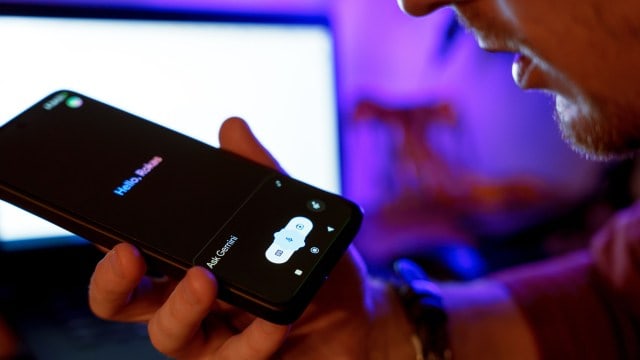
- Google has launched Gemini home screen widgets for Android and iOS devices
- The widgets let users access Gemini AI features with a single tap
- The widgets are customizable and allow users to prioritize their most-used Gemini actions
If you like using Google Gemini on your smartphone but find it tedious to tap multiple times to get to the feature you want, Google has you covered. The tech giant has begun rolling out Gemini home screen widgets for both Android and iOS. That means a single tap can launch right into a conversation with Gemini, open the microphone for a voice conversation, share a file with the AI, or even snap a photo with the camera that will go right to Gemini.
The rollout is happening gradually but widely. If you’re running Android 10 or higher, you can already add the Gemini widget by long-pressing on your home screen, tapping “Widgets,” finding Gemini in the list, and dragging it wherever you want it to live. For iOS 17 and up, it’s a similar story: hold your home screen until the icons jiggle, tap the plus button, search for Gemini, and add your widget of choice. You can also customize it by long-pressing it again and swapping out shortcuts or rearranging which actions appear first, such as the microphone for voice chats or the camera button for visual searches.
This update isn’t necessarily groundbreaking, but it speaks to the way a lot of people might use Gemini for short activities or tasks but don’t want to immerse themselves in it more than necessary.
If you use Gemini every day to ask questions, create funny images, plan trips, or brainstorm emails, this could make accessing the AI a little more convenient. The fact that it is also closer to how Siri and the rapidly dissolving Google Assistant function is probably not a coincidence.
These aren’t Gemini’s first mobile widgets either. Google released very similar Gemini widgets a couple of months ago for the iPhone lockscreen. Though functionally very similar, they are technically a different form of widget. Google is gradually rolling out the home screen Gemini widget over the next week, so you may only have the lock screen variant available right now.
The widgets also offer a glimpse into Google’s strategy for infusing Gemini into our daily lives. They want people to think about AI as not just something you call on occasionally, but as a day-to-day tool that is instantly and easily accessible. Instead of lurking in the background, Gemini becomes a part of the interface.
Starting with mobile devices is a smart move for making Gemini feel more like a core service. A lot of people first try out new tech features and products on mobile devices, not on their laptops or desktop computers. If they like it on a mobile device, maybe that will translate to desktop usage. And if you’re going to use AI on your phone, it should be quick and casual, like checking the weather or the time.
Gemini’s widgets are fairly basic at the moment, but they set the foundation for more complex widgets to come. Imagine a future widget that surfaces ongoing conversations so you can finish an interrupted project, or one that shows real-time updates from custom topics you follow, or even offers proactive suggestions based on your habits.
All in all, these new widgets are less about bells and whistles and more about removing friction. They aim to give Gemini a faster, more native-feeling way into your daily habits, whether on Android or iPhone. The widget may be the wedge Gemini needs to fulfill every little request an AI assistant can handle.
You might also like
Google has launched Gemini home screen widgets for Android and iOS devices The widgets let users access Gemini AI features with a single tap The widgets are customizable and allow users to prioritize their most-used Gemini actions If you like using Google Gemini on your smartphone but find it tedious…
