Shazam now makes it super-easy to add identified songs to a Spotify or Apple Music playlist – here’s how it works

Everyone’s favorite music-recognition app, Shazam, just got a new update that comes with a small, but particularly helpful new feature that has improved its integration with Spotify and Apple Music. The latest version of the app (version 18.9), which arrived on March 5, comes with an improved syncing feature that automatically adds your identified songs within the Shazam app to a playlist in your Spotify or Apple Music account. So far, it seems as though it’s available to Spotify and Apple Music users only.
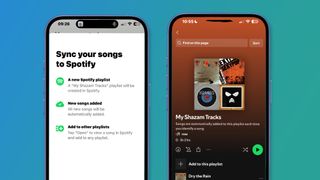
When you use Shazam’s Music Recognition on iPhone and iPad, it will automatically add those songs to a special playlist in your account titled ‘My Shazam Tracks’. Before Apple rolled out the 18.9 version of the app, songs identified manually through the Shazam app itself would be synced to a separate playlist in your Spotify or Apple Music account, but not songs discovered through the Control Center. The new update changes that, and will now add songs to the playlist when identified through Siri and Shortcuts, as well as the Control Center.

Since joining the Apple family back in 2018, Shazam has evolved into more than a simple music recognition app and has improved the experience of the best music streaming services through its integrations – and its new ability to predict music you’ll listen to in the future. According to the iOS App Store description, here’s exactly how you can expect the latest update to further improve your experience:
You may like
‘We’ve made syncing songs to Apple Music and Spotify better than ever! Shazam will now include songs found via Music Recognition in Control Centre, Siri, and Shortcuts to your “My Shazam Tracks” playlist in Apple Music or Spotify.
Simply toggle “Sync your songs” off and on in Shazam settings to re-sync all your previously discovered songs from the Shazam app. You may need to reopen Spotify to see the playlist refreshed.
Don’t forget to keep your Shazam History safe and in sync between your devices. To do this, turn on iCloud sync in Shazam Settings’.
For me, Shazam is one of my go-to music app companions, when it comes to song identification and I can’t quite put my finger on what’s currently playing – or even when I like the sound of a song and want to learn more. It also works wonders for when a familiar song starts playing during a movie or TV show. It’s a small, but rather effective new feature, and this is how you can take advantage of it for yourself.
How to sync your Shazam songs to Spotify or Apple Music
Go to the Shazam app and tap the settings icon

(Image: © Future)
It can be found in the ‘My Music’ section of the app when you swipe up on the main song search page. From there, connect your Spotify or Apple Music account to Shazam and enable the ‘Sync your songs’ toggle.
When you enable the toggle, Shazam should sync all of your identified songs to your Spotify or Apple Music account to create your ‘My Shazam Tracks’ playlist. If it doesn’t sync at first, I got mine to work by turning the toggle on and off a few times.
Head to Spotify or Apple Music to see your newly synced playlist
(Image: © Future)
Once your Shazam-searched songs have synced to your new playlist, listen to your heart’s content.
You might also like
Everyone’s favorite music-recognition app, Shazam, just got a new update that comes with a small, but particularly helpful new feature that has improved its integration with Spotify and Apple Music. The latest version of the app (version 18.9), which arrived on March 5, comes with an improved syncing feature that…
