Microsoft forgot to remove Windows 10’s File Explorer from Windows 11 – here’s how to find it
An especially inquisitive Reddit user has worked out a trick that lets you use Windows 10’s File Explorer in Windows 11 without having to mess with your Windows Registry.
Windows 10’s File Explorer and overall user interface (UI) are some of the biggest reasons that many folks prefer the older operating system, so this will be regarded as quite the breakthrough in some respects. Mainly because other workarounds to be able to achieve the same end require that you tinker with your Windows Registry, requiring a degree of understanding and care (or a third-party tool, most of which are not free).
Now, thanks to Reddit user The_Blank_Spot, you can achieve the same thing a lot more easily.
To fire up Windows 10’s File Explorer within Windows 11, follow these steps:
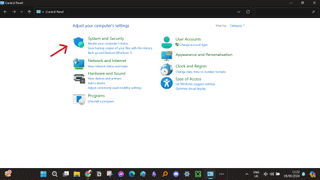
1. Type ‘Control Panel’ into the search box in the Windows 11 taskbar and open the panel.
2. Click on ‘System and Security.’
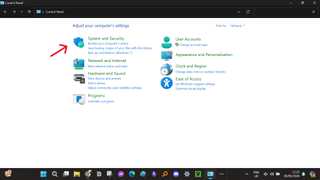
3. Click on ‘Windows Tools.’

This should open the ‘Windows Tools’ folder, but here’s the trick: it opens in the classic Windows 10 File Explorer UI. From here, you can go on to navigate to different file locations or system drives, and those who have tried, including us, have observed that the interface won’t change while that window stays open.
In other words, you’ll have the Windows 10 File Explorer the whole time you’re working with this window, until you close it.
An easy workaround with seemingly no downside
This workaround seemingly doesn’t cause any issues with your OS and it also doesn’t replace the current Windows 11 UI. You can use the rest of Windows 11 as usual, and you can even use both File Explorers side by side at the same time (if you open any folder in Windows 11 as normal).
Using Windows 10’s UI here also means you get access to a feature that was cut in Windows 11 – though admittedly it’s coming back in testing – namely ‘drag and drop’ in File Explorer’s address bar. This allows you to select a file or folder that’s currently open in a location in File Explorer, then drag it to another location listed in the address bar to move it there.
A commenter in the thread regarding The_Blank_Spot’s discovery, RockFox, pointed out that once you’re in ‘System and Security’ within ‘Control Panel,’ you can right-click ‘Windows Tools’ and use ‘Create shortcut.’ Then, you can right-click this shortcut and select ‘Pin to Start’ or ‘Pin to Taskbar’ to place it in a convenient place in those parts of the Windows 11 interface, and rename it to whatever you want.
Many people might be delighted to find out about this, and I will probably take these steps on my own device, too. However, since this does appear to be a bug that Microsoft hasn’t caught yet, it’s likely the company might close this loophole when the next huge Windows 11 update, 24H2, is released later in 2024.
YOU MIGHT ALSO LIKE…

An especially inquisitive Reddit user has worked out a trick that lets you use Windows 10’s File Explorer in Windows 11 without having to mess with your Windows Registry. Windows 10’s File Explorer and overall user interface (UI) are some of the biggest reasons that many folks prefer the older…
