I tried Copilot Vision, and it could change how you use Windows forever

Adding eyes to artificial intelligence is always a tricky thing. Do you want it to see everything you’re doing all the time? Certainly not, but I think most of us agree that an AI visual assist when you need it could come in quite handy. Microsoft‘s new Copilot Vision may be one of the most promising applications of AI-based visual capabilities I’ve seen yet.
Microsoft unveiled the Copilot Vision update for its Windows App and mobile apps (you can point your camera at things, and Vision can identify them for you) during a splashy, combined Copilot and Microsoft 50th Anniversary event.
Copilot all but got a brain transplant, using both homegrown (Microsoft AI or MAI) and OpenAI GPT generative models to deliver updates across memory, search, personalization, and vision capabilities.
Now that I’ve seen Copilot Vision in action, I can tell you it’s one of the most exciting and important updates of the bunch – even if it is coming in two stages.
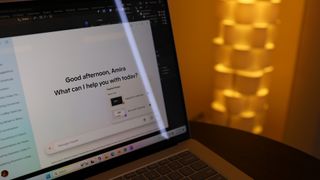
In the version you can access for your supporting Windows Desktop app right now, Copilot Vision can see the apps you’re running on the desktop. When you open Copilot – by selecting the icon or pressing your Copilot key on your keyboard – you can now select the new eyeglasses icon.
This lets you see a list of open apps; in our case, we had two running: Blender 3D and Clipchamp. This means that while Copilot is aware of the available apps running on Windows, it is not automatically watching.
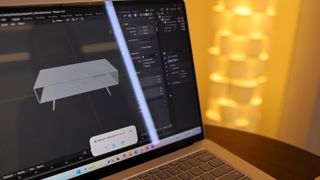
We selected Blender 3D, and from that moment forward, something in my Windows existence shifted. I realized that Copilot can truly see which app you’re running, and instead of guessing at your intent, it answers based on the app and even the project you’re working on.
A 3D coffee table project was open, and using our voice, we asked about how to make the table design more traditional. Our prompt contained almost no details about the app or the project, but Copilot’s answer, in a lovely baritone, was fully contextual.
We then switched and asked about how to make annotations in the app. Copilot started to answer but we interrupted and asked where to find the icon to add the annotations. Copilot quickly adjusted and promptly told us how to find it.
This could prove enormously useful because you’re no longer breaking your flow to jump out to search or even to over-explain which app you’re using or the project. Copilot Vision sees and knows.
Let me tell you, though, about what’s to come.

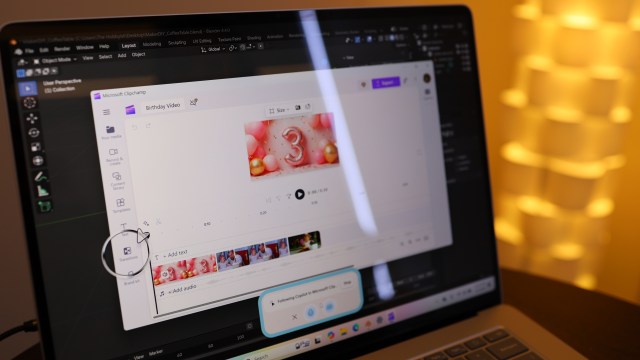
We followed the same steps to open Copilot and access the Vision component, but this time, we pointed Copilot at our open Clipchamp project.
We asked Copilot how to make our video transitions more seamless. Instead of a text prompt explaining what to do, Copilot Vision showed us exactly where to find the necessary tool in the app.
A giant arrow (inside an animated circle) appeared on the screen, pointing at the transitions tool it recommended we use as it explained the necessary steps. We ran through this demo a couple of times, and owing to its still under-development nature, it didn’t always work.
When it did, though, it pointed to a potentially exciting change in how we’ll work with apps in Windows.

We’ve also seen a demo video that shows Copilot Vision digging even deeper into the Photoshop app to find the right tools. This, my friends, is Clippy on steroids.
Imagine the future where you use text prompts or your voice to figure out how to perform tasks in an open app, and Copilot Vision digitally takes your hand and guides you through. There’s no sign that it will take app-level actions on your behalf, but this could be an incredible visual assistant.
The good news is that the Copilot Vision that at least knows what app and project you’re working on is available now. The bad news is that the Copilot Vision I really want has no definite timeline. But I have to assume it won’t be long. We did see it live, after all.
You might also like
Adding eyes to artificial intelligence is always a tricky thing. Do you want it to see everything you’re doing all the time? Certainly not, but I think most of us agree that an AI visual assist when you need it could come in quite handy. Microsoft‘s new Copilot Vision may…
