Seeing something on my phone screen that I want to know more about is a regular occurrence, and Google always wants to make it easier to get to, well, Google. And so we have Circle to Search, a new way of looking up information on mobile devices.
How to use the new Circle to Search tool

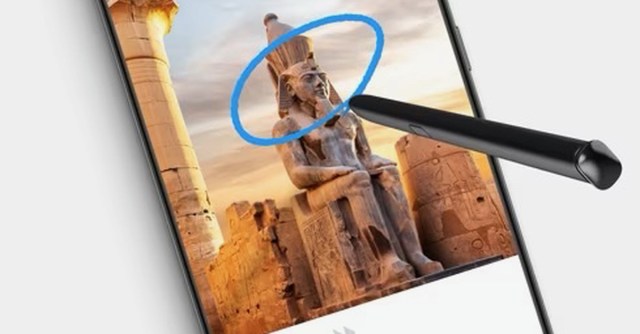
The idea is pretty simple — and in fact, simplicity is its main selling point. In a video, Samsung (which makes one of the phones that has this feature) gives the example of someone who sees an orange dog lamp in an image, and instead of running a text search describing what they’re looking at, they find out they can just circle the lamp with their finger to get matches from the web.
Shopping is the obvious use case here, but you can also identify plants and animals, look up words, and get context on anything you’re seeing — in other words, anything a Google search can be.
Nice, right? Yes, it is — if you have the right device.
a:hover]:shadow-highlight-franklin dark:[&>a:hover]:shadow-highlight-franklin [&>a]:shadow-underline-black dark:[&>a]:shadow-underline-white”>The phones you need
Circle to Search was announced at the Samsung Galaxy S24 launch in mid-January and is available on the Samsung Galaxy S24, the Galaxy S24 Plus, and the Galaxy S24 Ultra. As of the end of January, it also came to the Google Pixel 8 and Pixel 8 Pro.
Hopefully, the feature will be available on other Android phones in the future, though we wouldn’t bet on anything launched before 2023.
a:hover]:shadow-highlight-franklin dark:[&>a:hover]:shadow-highlight-franklin [&>a]:shadow-underline-black dark:[&>a]:shadow-underline-white”>How to use Circle to Search
If you’re using Android with navigation buttons, long-press on the home button (the circle) to launch Circle to Search. If you’re using gestures to navigate, long-press on the navigation handle at the bottom of the screen to access the feature.
The first time you do this, you’ll be presented with an introductory screen that explains how the feature works. Tap Try it now, and you’re ready to go. (On subsequent searches, this screen doesn’t appear.)
Despite the name of this feature, you don’t actually have to circle something to base a search on it. You can drag a line across it (handy for text), you can scribble on top of it, or you can just tap it and let Android’s AI smarts try to figure out what you’re trying to select. (Most of the time, it’s pretty accurate.)
If you have the Samsung Galaxy S24 Ultra, you can use the S Pen instead of your finger. You’ll notice handles around whatever it is you’ve selected, and you can tap and drag these around if you want to expand or shrink the search selection.
The results that pop up on-screen are very reminiscent of what you get with Google Lens — in fact, as far as I can tell, Circle to Search is just a quicker way of getting at the visual search available in Google Lens. Scroll down to see more results, and tap on a result to see it on the web.
a:hover]:shadow-highlight-franklin dark:[&>a:hover]:shadow-highlight-franklin [&>a]:shadow-underline-black dark:[&>a]:shadow-underline-white”>Add to your search
Once you’ve mastered the basics, you can add to your searches with extra context. The pop-up results have a search bar at the top: tap here to type out an additional query (or tap the mic icon to use your voice instead).
So you might ask “What can I put this on?” for a condiment (Google’s own example), or ask “Why is this trending?” or “Which country is this in?” It’s a useful way of creating searches that are a bit more complex than simply searching on an image.
What you can’t do yet, as far as I can tell, is select multiple items on-screen and then compare them or run multiple searches at the same time. Plus, some of the results can be hit-or-miss, depending on the quality of your selection and how many other similar-looking images are on the web.
Nevertheless, this seems like a genuinely useful addition to Android. The real beauty of it is the way it works on top of other apps: an Instagram caption, for example, or a webpage image or artwork on a podcast. Whether the app in question lets you select text or save images, it doesn’t matter.
To quit Circle to Search, tap on the X in the top-left corner. Tap on the three dots in the top-right corner, and you get options to see your Google search history (across all apps and services) and delete the last 15 minutes of your search history.
Seeing something on my phone screen that I want to know more about is a regular occurrence, and Google always wants to make it easier to get to, well, Google. And so we have Circle to Search, a new way of looking up information on mobile devices. The idea is…
