How to use Magnifier on a MacBook to zoom in on faraway text

One of the iPhone’s many accessibility features is something Apple calls "Magnifier," which uses the smartphone's cameras to magnify and identify objects in the world around you. For Global Accessibility Awareness Day in May this year, Apple brought Magnifier to the Mac, opening up even more places the assistive tool can be used, like classroom or work environments where you might already have a MacBook pulled out.
Magnifier requires macOS 26 Tahoe and can work with a built-in webcam, a connected third-party camera or an iPhone via Apple's Continuity feature. Provided your MacBook can run Apple’s latest software update, it’s a natural fit for zooming in on a whiteboard at the back of a large lecture hall or getting a closer look at documents on a desk in front of you. You can use the app to both capture an individual image you want to refer to later, or to analyze text in a live video feed. But where to begin? Here’s how to set up and use Magnifier on your Mac.
How to use Magnifier to identify and display text
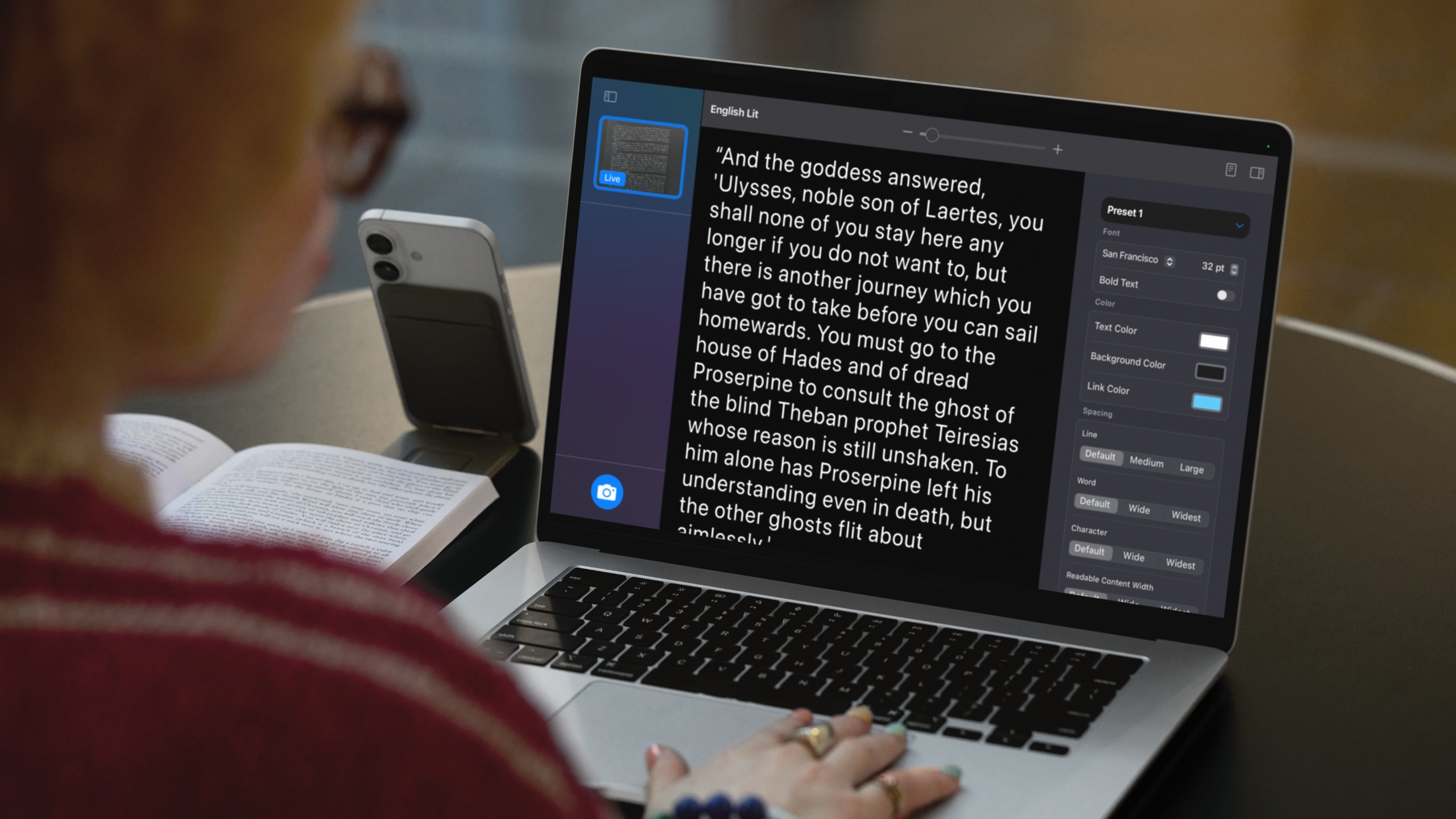
Magnifier's most powerful feature uses the MacBook's machine learning capabilities to identify, display and format text that your camera captures. This works with text your camera can see in the room around you, and things it captures via macOS' Desk View feature. For example, to view documents on your desk:
Open Magnifier.
Click on the Camera section in Magnifier's menu bar and then select your Desk View camera from the dropdown menu.
Click on the Reader icon (a simple illustration of a document) near the top-right of your Magnifier window.
Click on the sidebar menu icon to access settings to format text.
Apple gives you options to change the color, font and background of text Magnifier identifies, among other customization options. If you'd prefer to capture faraway text, you can position a webcam or iPhone camera facing away from you and swap to it via the Camera section in Magnifier's menu bar.
You can also listen to any text Magnifier has identified by clicking on the Play button in the top-right corner of Magnifier's reader mode. Clicking the Pause button will pause playback, clicking the Skip Forward or Skip Backward buttons skip through lines of text, and if you want to adjust playback speed, you can click on the 1x button and pick a speed from the dropdown menu.
How to use Magnifier to zoom in on yourself
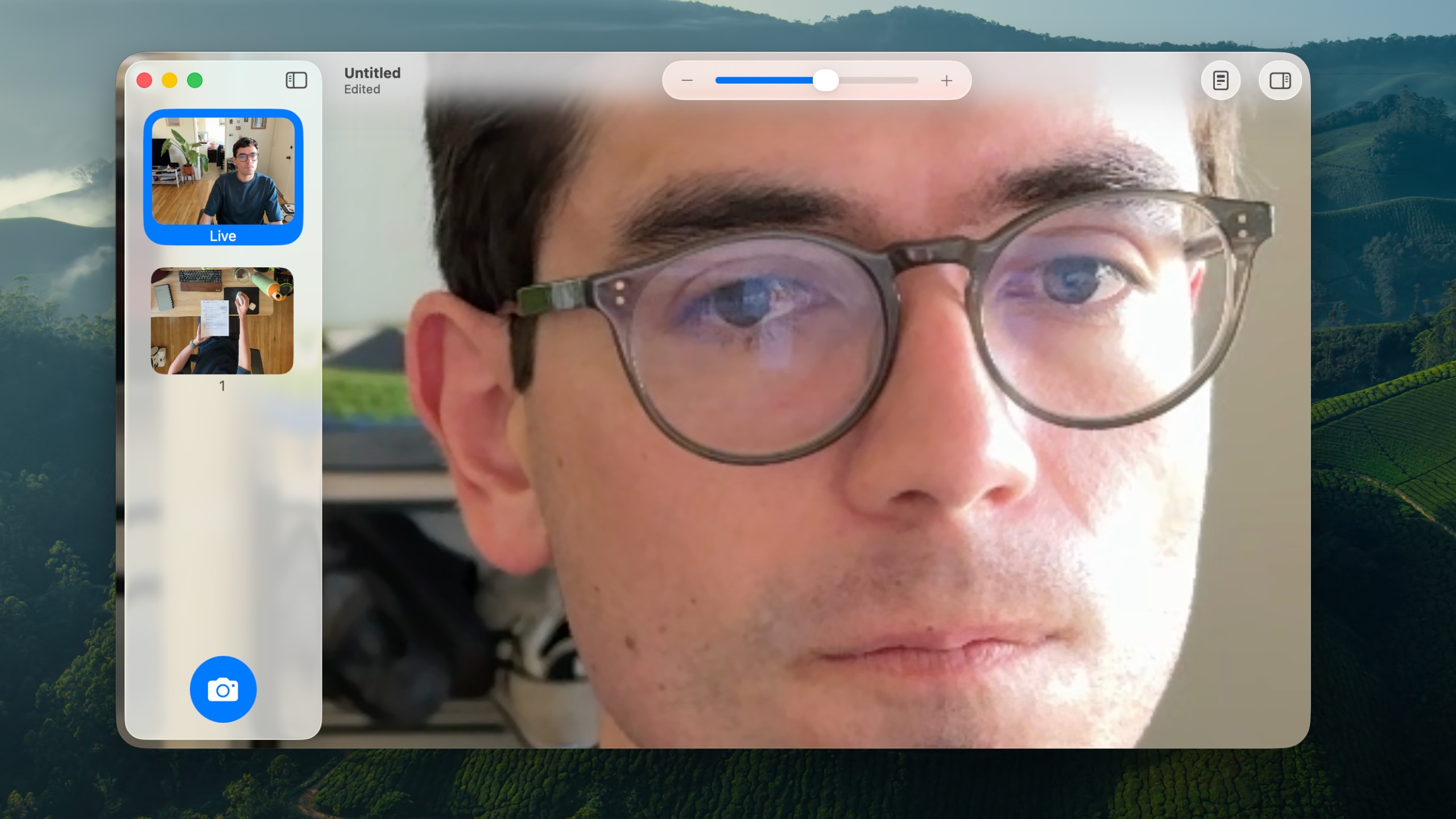
By default, Magnifier uses your MacBook's built-in webcam, which means you'll see a view of yourself and whatever's behind you if you don't have another camera selected. This might not be usual for seeing faraway text, but it is handy if you're applying makeup, putting in contacts or doing anything else where you need a detailed view of your face.
In my tests, using Magnifier worked the best with my MacBook's built-in webcam or an iPhone. When I tried using a third-party webcam from Logitech, my live camera feed was noticeably laggy. Your mileage may vary, but if you experience any issues with your own webcam, it's worth trying your built-in webcam to see if that helps. You can swap between cameras and zoom in to your camera feed inside the Magnifier app:
Open Magnifier.
In the top menu bar, select Camera and then click on the camera you'd like to use in the dropdown menu.
Use the slider in the top center of the Magnifier window to zoom in on yourself.
You can see a live feed of your zoomed in view in Magnifier's main window. If you click on the Camera button in the bottom-left corner of the app, you can also snap a photo to review later. Any photos you capture will appear in Magnifier's left sidebar menu. Clicking on them lets you view them, zoom in on them and adjust their visual appearance (Brightness, Contrast and other visual settings) via the Image section in Magnifier's menu bar.
This article originally appeared on Engadget at https://www.engadget.com/computing/laptops/how-to-use-magnifier-on-a-macbook-to-zoom-in-on-faraway-text-080100677.html?src=rss
One of the iPhone’s many accessibility features is something Apple calls "Magnifier," which uses the smartphone's cameras to magnify and identify objects in the world around you. For Global Accessibility Awareness Day in May this year, Apple brought Magnifier to the Mac, opening up even more places the assistive tool…
