Latest iOS 17 update can fix iPhone 15 overheating problem – get it now

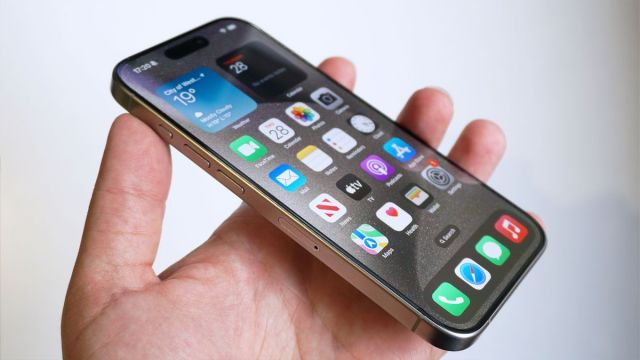
If you’ve got your hands on an iPhone 15, then you’ll very likely want to update it to the latest version of iOS.
That’s because iOS 17.0.3 reportedly fixes a widespread issue of the new iPhones overheating; Apple’s take on the situation is that the update fixes “an issue that may cause iPhone to run warmer than expected” alongside bringing in two critical security updates. Testing by ZDNet’s Jason Hiner found that the update lowers the temperature of the iPhone 15 Pro and iPhone 15 Pro Max by 15 degrees when running at its hottest.
While we’ve only got anecdotal experience of our iPhone 15 review models getting slightly hotter than expected, Hiner used a thermal camera to note that his iPhone 15 Pro Max review unit got up to 107.1 degrees Fahrenheit (that’s 41.2-degrees Celsius) when fast charging on a 35W charger.
However, when the iOS 17.0.3 update was applied, Hiner found that the iPhone 15 Pro Max maxed out at 93.8 degrees Fahrenheit (34.3 degrees Celsius). And thankfully, whatever Apple has done to reduce the overheating, Hiner found no effect on the phone’s performance. So, it would appear the initial overheating problem has been fixed by this update.
Get your iPhone updated
Conventional wisdom is to make sure you apply the latest software updates to your smartphone when the operating system is in its full release guide. Generally, the updates that get pushed out tend to be fixes and security patches, as well as tweaks to performance parameters, rather than big feature drops that could have unexpected consequences.
So we suggest that you have your iPhone set up to update automatically, and that when an update is flagged, you make sure it’s installed in a timely manner rather than putting it off.
When it comes to betas, that’s another story. We don’t advise you to install a beta iOS or Android operating system on your main smartphone. By their very nature, Betas are more testbed for features and updates, so they don’t guarantee the most stable or secure experience.
Automatic updates in iOS tend to be enabled by default, But if your iPhone is slow on getting one, head to the Settings app, scroll down to the ‘General’ option, and then into ‘Software update.’ From there, your iPhone will scan for the latest update and prompt you to download and install it if needed. If you’re still on an older version of iOS, there’ll also be a prompt to upgrade to the latest version.
You might also like
If you’ve got your hands on an iPhone 15, then you’ll very likely want to update it to the latest version of iOS. That’s because iOS 17.0.3 reportedly fixes a widespread issue of the new iPhones overheating; Apple’s take on the situation is that the update fixes “an issue that…
