Sorting, managing, editing, and sharing your photographs is a job and a half, often requiring multiple apps just to get on top of the workflow.
I’ve tested several software packages that do a very good job at merging practically every tool you need into a single app, but what’s bugged me is they only cater to Windows users.
Which is why my interest was piqued by ON1’s Photo RAW’s multi-platform capabilities (well, for Windows and Macs – sorry Linux users). So let’s take a look at it.
Latest Videos FromTechRadar
ON1 Photo RAW 2026: Pricing & plans

- No subscription model
- You purchase the software outright
- Generous trial period, money back guarantee, what’s not to like
The ON1 Photo Raw has a flash sale ending today (August 7), with 50% off – you can check it out by clicking here.
More and more companies have jumped to subscription plans – I’m never a fan of this.
Well, ON1 are having none of that, and its Photo RAW app is only available to own outright. Full price, it costs a very fair $100.
When you consider you can use Adobe Lightroom and Photoshop for $20 a month, not only will you be saving money with Photo RAW after only 5 months.
The software also comes with a very generous 30-day free trial (email address required, but not your credit card details). If you purchase it and conclude it’s not for you, there’s also a 30-day money back guarantee. That means ON1 want to be certain you’ll only buy their software if you’re delighted with it.
You can see what’s on offer here.
- Pricing & plans: 5 / 5
ON1 Photo RAW 2026: Interface

- Plenty of tools
- When all on display, you’re not left with much space for photos
- But thankfully you can hide sidebars at will
I found Photo RAW’s interface to be very well thought out, polished and designed. Perhaps a little too polished, as some actions and concepts weren’t immediately obvious to me.
Like a little hollowed out blue circle being a tick box, or clicking on a menu’s header would collapse or expand its content. But it just takes a few seconds to figure it out and then you’re flying.
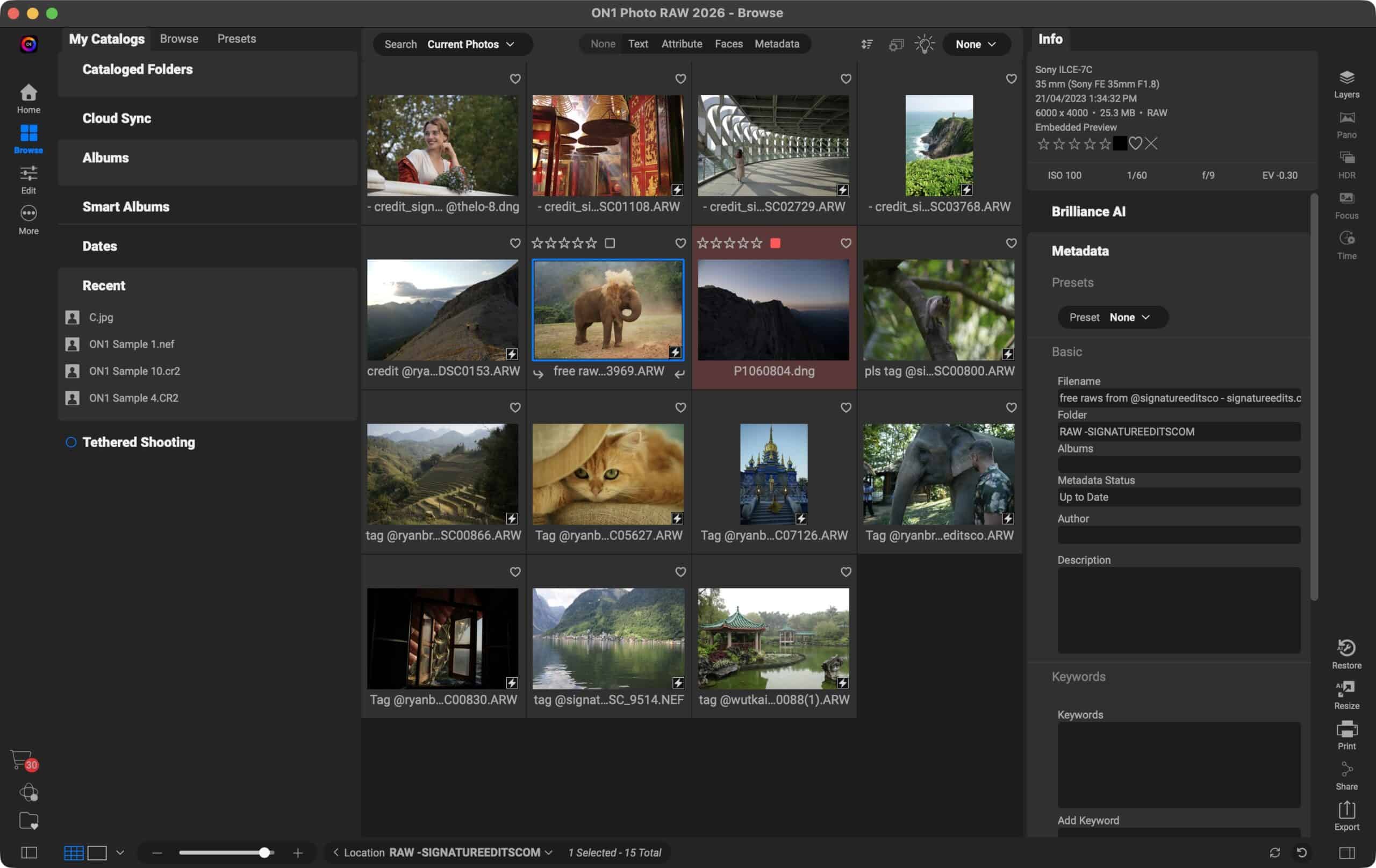
There are numerous sidebars on either side, the thinnest one furthest to the left is contextual, depending on the module you’re in. Selecting ‘Home’ shows you some recent photos you’ve worked on, along with those available in recently opened folders. You’ll also find links to helpful tutorial videos.
‘Browse’ reveals the guts of your local hard drives, with every single folder you’ve ever created ready to be accessed, and also offers access to online storage from Dropbox, Google Drive and OneDrive
‘Edit’ is where you’ll work on your photos, and selecting that icon will also reveal additional icons down that sidebar.
If you’re ever puzzled about what a particular icon does, hover over it for a few seconds to reveal a tool tip popup window, complete with a short audioless video illustrating what it does.
When a tool is selected, a toolbar at the top of the interface will offer specific parameters for that selected tool. The other three sidebars can be customised – you can choose if some tools are displayed in the left or right one, or you can remove them from view altogether offering more space to the shot you’re working on.
By default, the large sidebar on the left is for your presets and layer work, while the one on the right is for your regular color correcting tools, and similar. A small sidebar on the far right contains options to share your work either online or by printing it.
- Interface: 4 / 5
ON1 Photo RAW 2026: Editing

- Tools are easy to use
- Many are made better with the clever use of complex algorithms designed to improve your work rather than supplant it
Now, to start, I downloaded a series of free RAW files from Signature Edits (check out the website here).
If you’ve done any color correction you’ll recognise all the sliders present in the ‘Tone and color’ section on the right, which allow you to make satisfying alterations to an image in next to no time.
But if that just takes too long for you, just above those sliders is a ‘Brilliance AI’ button. Activate it, and complex algorithms will do the necessary changes for you. But unlike many other AI features from competing software, this doesn’t need to be the be all and end all of the process.
Expand Brilliance AI to reveal sliders to enhance or tone down those automatic changes, including some very clever masking options to focus your changes on specific sections, such as people, animals, the sky, and more. You can also just go back to Tone and color sliders to make any further alterations yourself.
Adding Filters is as easy as selecting one you’d like and using one of its preset ‘Styles’. As before you’re also free to make manual changes thanks to the available sliders, if you’re after a more unique look. It’s good to know you can add as many filters as you’d like to an image.

When it comes to masking, Photo RAW has some complex algorithms ready and waiting to work for you, in the shape of Super Select AI. Clicking on that tool (in the thin left sidebar) lets the software analyze your image. This should only take a couple of seconds. You can then isolate a specific area of an image, modifying it while leaving the rest untouched.
The level of precision you can have with masks is quite extreme. For example, adding to your selection, solely focussing on small sections of your image such as a subject’s eyes, adding a filter to the entire shot, and then removing it for one or two specific areas. You can get amazingly detailed with your alterations.
And if that isn’t enough, you’re able to work with layers, just like you can with Photoshop, superimposing photos on top of others, masking areas, revealing others, adding text. Although to be honest, being used to Photoshop and the like, that section did feel a little too bare in comparison.
What you can do with Photo RAW is remarkably intensive, and it uses those complex algorithms it calls AI in a way that enhances your creativity rather than take over the process, and that can only be lauded.
Should I buy ON1 Photo Raw?

(Image credit: Future)


Buy it if…
You’re looking for software to organize, manage, alter and share your photos, love the idea of a perpetual licence, and appreciate AI being used as a clever and intricate tool rather than a replacement for your actual vision.
Don’t buy it if…
You are too wedded to Adobe’s suite of creative software, or your editing needs are too casual to take advantage of the level of complexity and precision Photo RAW offers.
For more creative tools, we tested the best photo editors.

